
Troubleshooting Internet Issues
- Tasha Hoskins

- Mar 7
- 4 min read
Updated: Mar 11
Overview
Dealing with slow internet or having connection issues? Try these quick troubleshooting steps before calling an expert for help.

Troubleshooting Steps
These best practices can be performed in any order. Sometimes a single quick fix does the trick, while other times a combination of these methods will fix the issue.
Restart Router
Do you have one box or two?

One Box
A single device (Modem/Router combo) that is plugged into the wall

Two Boxes
Two separate devices (Modem & Router) connected by a short cord.
How To Restart Router (One-Box)
Unplug the Power
Pull the power cord out from the back of the device.
Wait 30 Seconds
This allows the memory to clear and hardware to cool down.
Plug It Back In
Securely reconnect the power cord.
Wait for the Lights
Give it 3 to 5 minutes.
Look for a solid "Online" or "Internet" light.
Test Your Device
Open a browser on your phone to confirm you're back online.
Watch the Steps:
How To Restart Router (Two-Boxes)
Unplug Both
Pull the power cords out from the back of both the Modem and the Router.
Plug in the Modem First
This is the box connected to the wall cable.
Wait 2 minutes until its lights stay solid.
Plug in the Router Second
Now plug in your router.
Wait another 2 minutes for it to start broadcasting your Wi-Fi.
Wait for Solid Lights
Once both devices have solid lights, they have successfully re-connected to each other.
Test Your Device
Try loading a video or a webpage to ensure the connection is stable.
Watch the Steps:
Test Internet Speed
How To Test Internet Speed
Testing your internet speed will help determine if the problem is the Wifi signal inside your house, or with your internet provider.
Go to google.com and type in “internet speed test”
Click the “Run Speed Test” button
Review Google’s results of your internet speed
Is your speed between 5-100 Mbps?
YES - Try Relocating Your Router
NO - The Wifi signal inside your house is strong. This is not the issue.
Watch the Steps:
How To Relocate Router
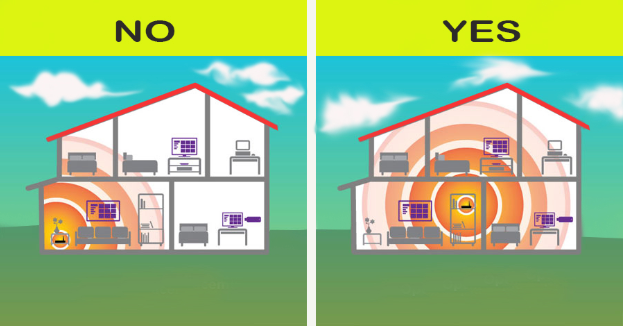
Think of your Wifi signal like it is a lightbulb, if you want to light up the whole house, you need to place the lightbulb in a central location. Same with your router, which provides Wifi. If possible, try this:
Move it to the most central room in the house
Like the living room or a central hallway (see below visual)
Place the router at eye level or higher
Like on top of a bookshelf, a mantle, or tall side table (see below visual)
Keep the router at least 10 feet away from the kitchen.
Tech note: your Wifi and Microwave use the same frequency!
After relocating your router, retest your internet speed.
Sometimes moving your router solves your connectivity issue.
Delete Junk Files
Delete Temporary Files
Your computer creates and stores temporary files on your device to help it run faster. However, over time, these files add-up and begin to slow down your computer.
How to Delete Temporary Files on a Windows Computer
Click the Start button.
Type Disk Cleanup and press Enter.
Select your main drive (usually C:) and click OK.
Check the boxes for
Downloaded Program Files
Temporary Internet Files
Recycle Bin
Temporary Files
Thumbnails
Click OK, then Delete Files
Watch Steps:
Clear Browser History
Every time you visit a website, your browser keeps a record of where you’ve been and what you’ve looked at. Clearing this history can help your internet run more smoothly.
How To Clear Browser History
NOTE - The below steps work for Chrome, Firefox and Edge
While your internet browser is open, press:
Windows: Ctrl + Shift + Delete
macOS: Cmd + Shift + Delete
At the top of the window, you’ll see a menu.
Select "Last hour" or "Last 24 hours" if you want to fix a recent glitch.
Select "All time" if you want a completely fresh start.
You will see several checkboxes. Here is what they actually do:
Browsing history - Clears the list of websites you've visited.
Cookies and other site data - Clears files that keep you logged in.
Note: Checking this will sign you out of most accounts.
Cached images and files - Clears "pre-loaded" versions of websites.
Click the blue "Clear data" button
Watch Steps:
Update Software
How To Update Software & Restart Device
Oftentimes, an update to your device and a simple restart is all it takes to resolve your internet issues.
For Windows Users
Go to Windows > Settings > Windows Update > Check for Updates
If an update is needed, select Update Now
Wait for the updates to install
Restart Device
Select the Windows button
Select Power icon
Watch Steps:
For Mac Users
Click the Apple Menu () in the top-left corner of your screen.
Select System Settings > Software Update
Select Check for Updates
If an update is needed, Select Update Now
Wait for updates to install
Restart Device
Click the Apple Menu () in the top-left corner of your screen
Select Restart and click the Restart button to confirm.
Watch Steps:
Comments